
Every project has its own calendar link, which syncs the schedules, tasks, and events for that project only. Follow these steps to create one.
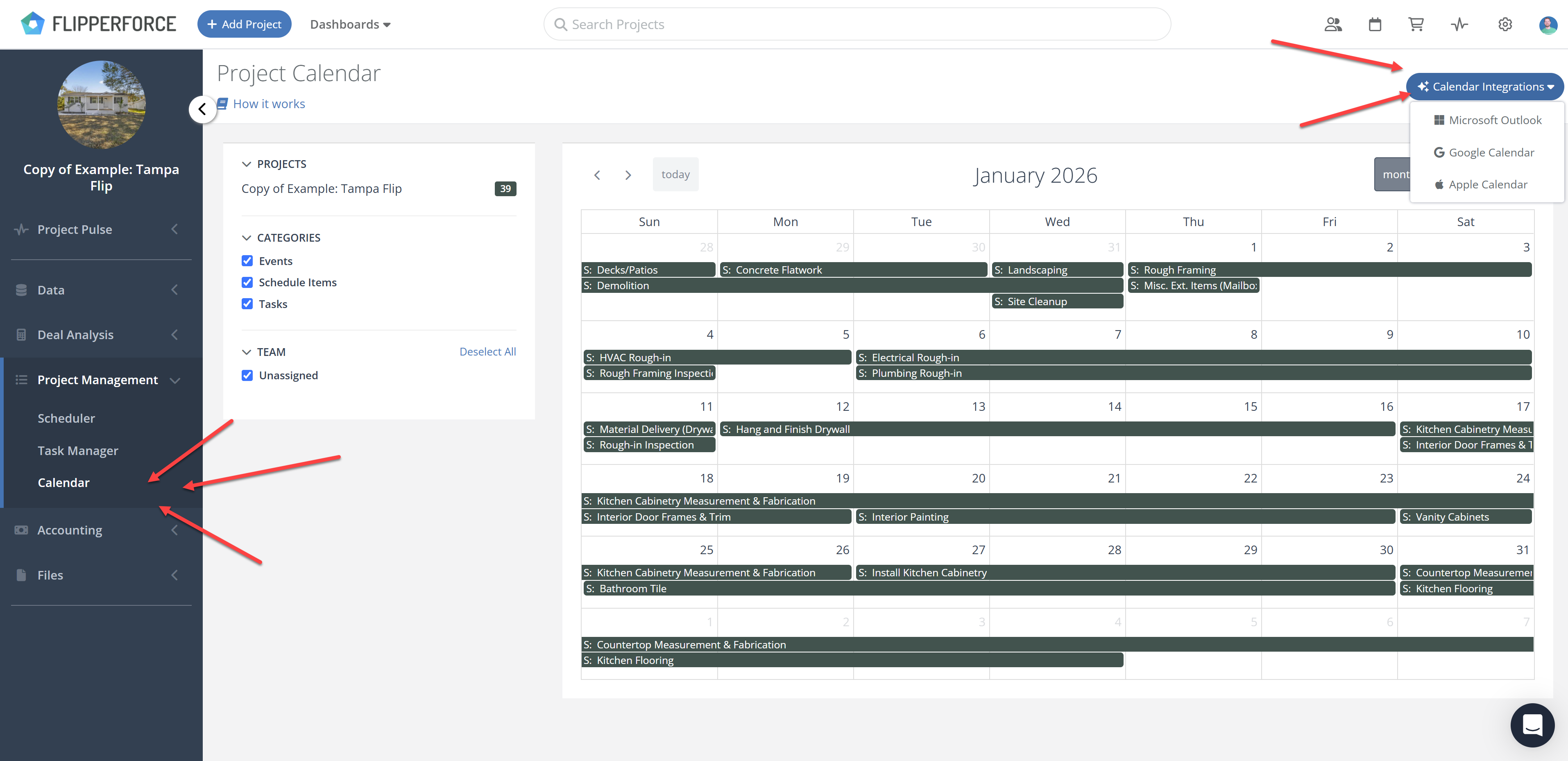
Navigate to the project, click Project Management in the sidebar, then click Calendar.
Click the Calendar Integrations button in the top right and choose Google Calendar, Microsoft Outlook, or Apple Calendar.
Click the Copy Calendar URL button to copy the link to your clipboard.
Follow the instructions in the popup, or see the full walkthrough for your calendar app:
The steps in your calendar app are identical to the Workspace Calendar integration. The only difference is where you copy the link from and what it syncs.
Your calendar will now pull in the schedules, tasks, and events for that project only. Repeat these steps for any other project you want to connect.
