
With Auto Scheduling enabled, every task is set to automatic by default and moves with its dependencies. Sometimes you need a task to stay on a specific date, like when a contractor has committed to showing up on a certain day. You can lock that task so Auto Scheduling won't move it.
To lock a task to a specific date:
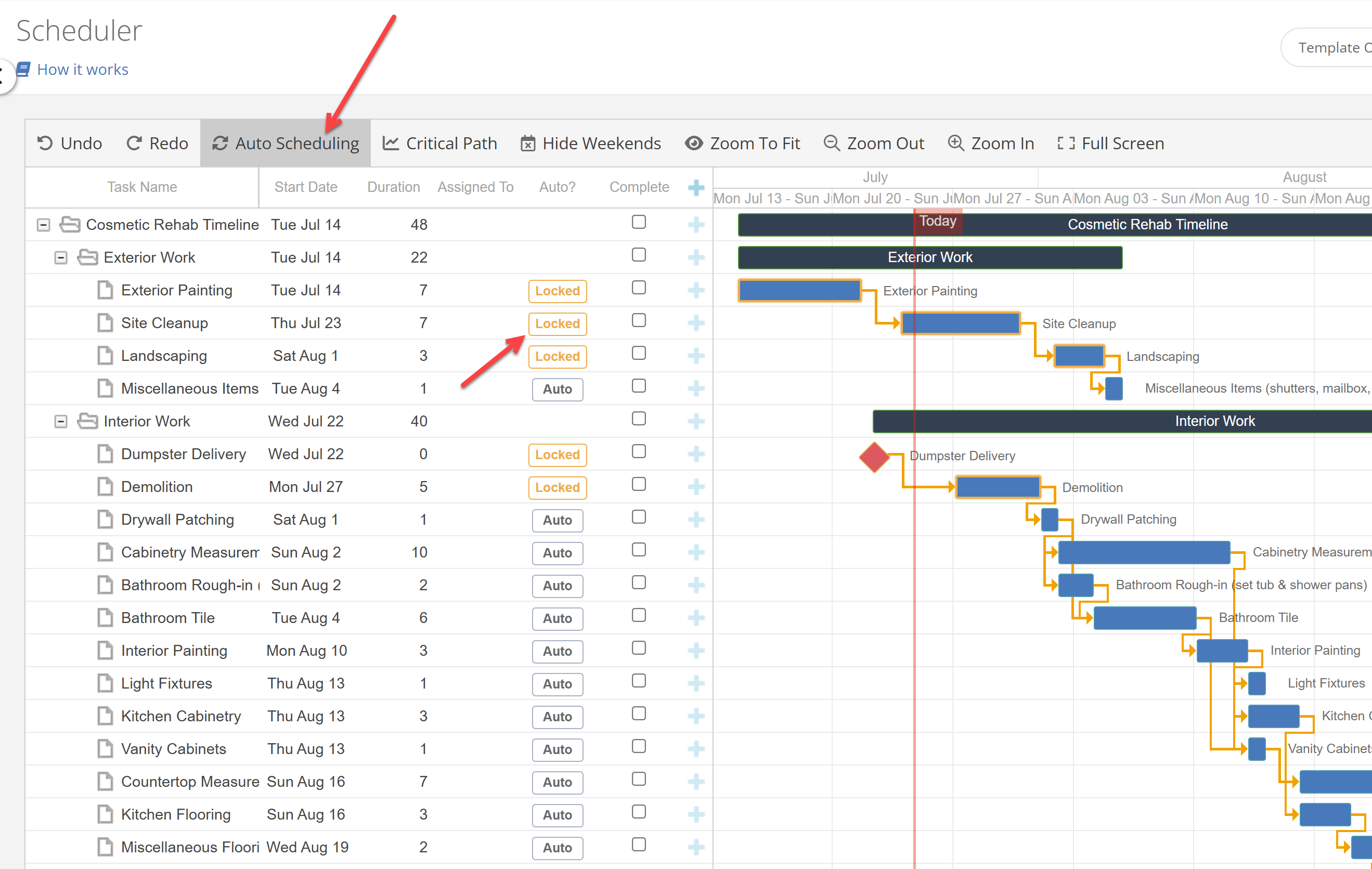
The task will hold that date even if an earlier task runs late, while the rest of your schedule keeps taking advantage of Auto Scheduling. You can also set this from the task's edit window under the Auto Scheduling section by choosing "Locked."
To let the task move with its dependencies again, toggle it back from Locked to Auto.
