How do I delete the entire Project Schedule and start over?
How do I delete the entire Project Schedule and start over?
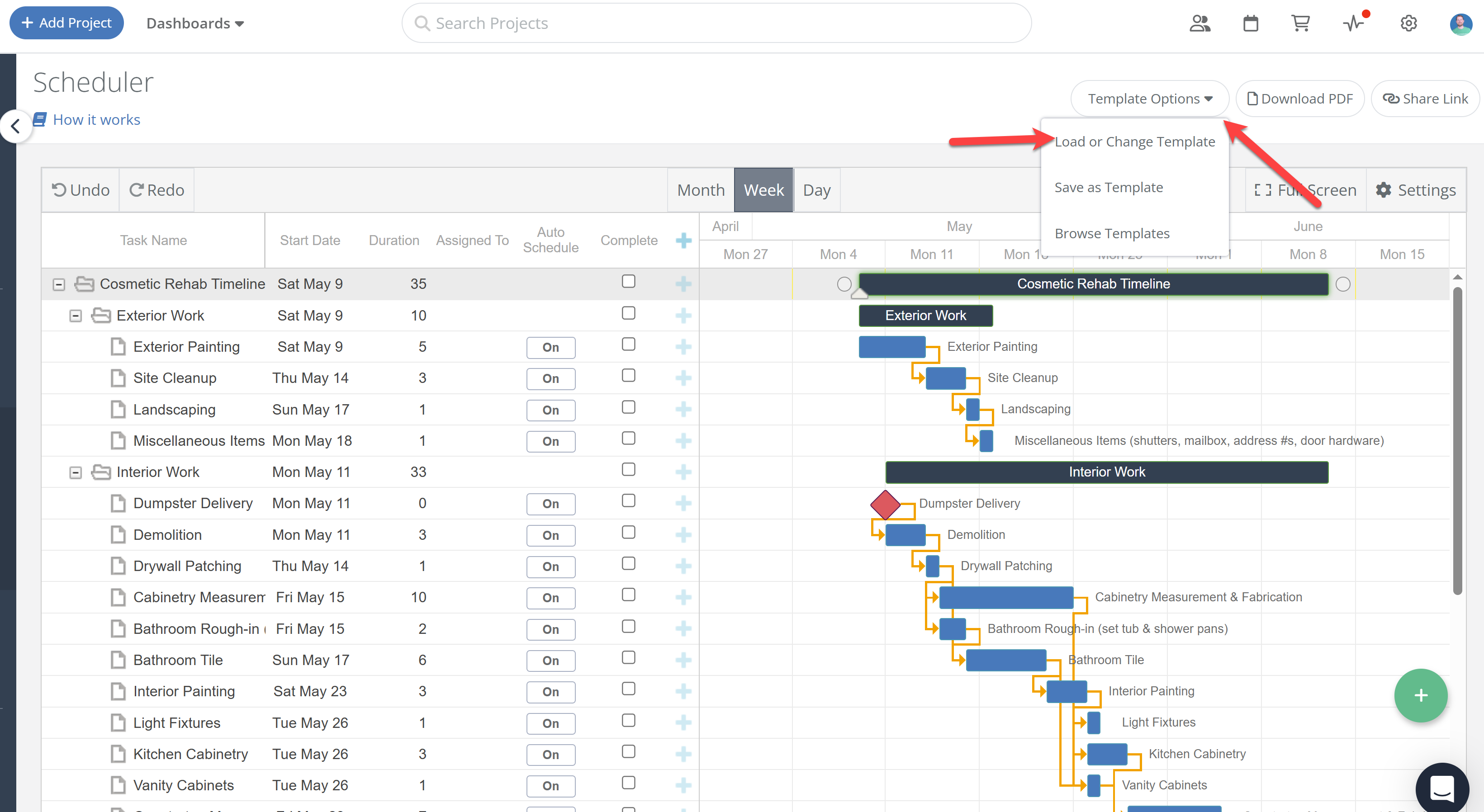
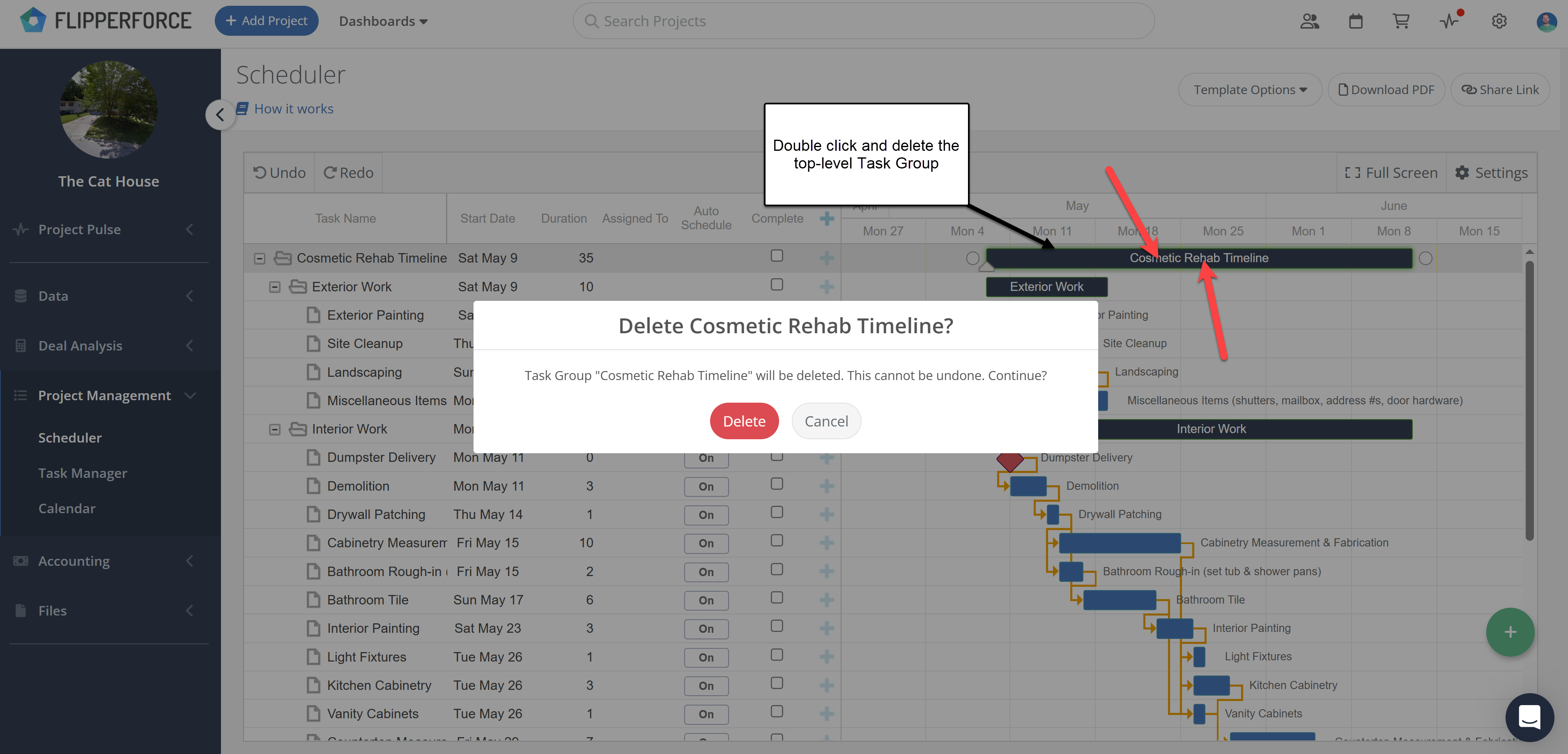
Either load a new template (Template Options > Load or Change Template), which replaces the whole schedule, or click the top Task Group on the Gantt chart and Delete it, which removes every task inside it.
If you loaded the wrong template or want to start the Project Scheduler over, you don't need to delete tasks one at a time, and you don't need to delete the project. There are two ways to clear the whole schedule.
Option 1: Load or Change Template
Use this if you know which template you want instead.
Open the project and go to Project Management > Scheduler.
Click Template Options in the top right.
Select Load or Change Template.
Choose the template you want and confirm.
Loading a new template completely overrides and replaces your current project schedule.
Option 2: Delete the Top Task Group
Use this if you want a blank schedule to build from scratch.
Open the project and go to Project Management > Scheduler.
Click the top Task Group, the dark bar at the very top of the Gantt chart (for example, "Cosmetic Rehab Timeline").
Select Delete.
In the confirmation window, click Delete.
This deletes every task inside that Task Group. If your schedule has more than one top-level Task Group, repeat for each one.
Note: Neither option can be undone. Both only change the Scheduler. Your deal analysis, budget, expenses, photos, and files on the project are not affected.
Get immediate, feature-specific answers without digging through articles. DaveBot is here 24/7 to provide detailed explanations, troubleshooting tips, and guidance on all FlipperForce tools.