How do I upload receipts using the FlipperForce mobile app?
How do I upload receipts using the FlipperForce mobile app?
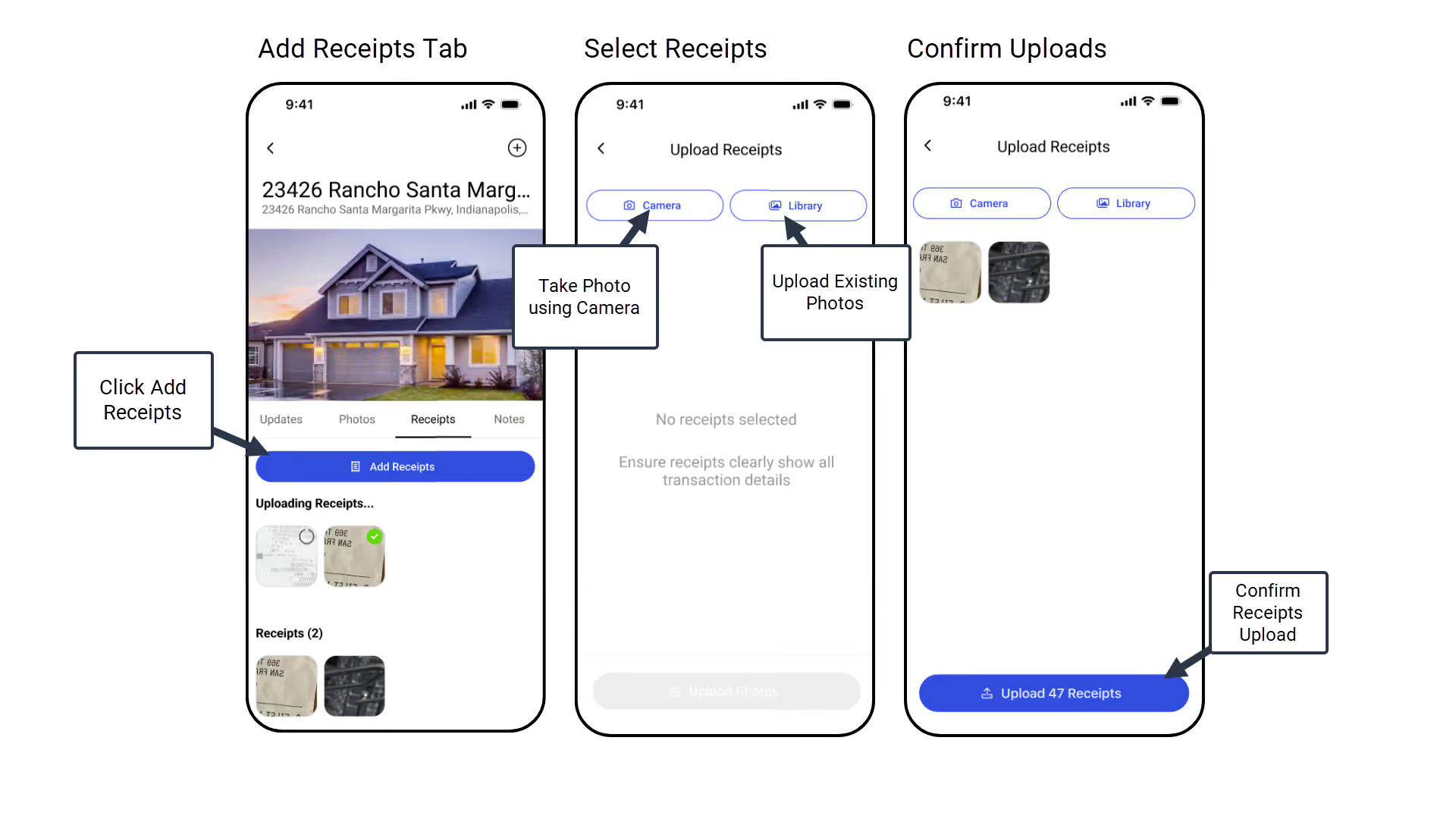
To upload receipts, open your project in the mobile app, navigate to the Receipts tab, and tap the Add Receipts button. You can capture new photos of physical receipts or bulk upload existing images and files directly from your phone's gallery.
To upload receipts using the FlipperForce mobile app, first navigate to the specific project where you want to upload the receipts. Then, click on the Receipts tab, and finally, click the Add Receipts button.
Once you are in the upload feature, you have two options:
You can take a new photo of a physical receipt directly with your phone's camera.
You can upload existing images or files from your phone's gallery or file storage.
You can upload receipts one at a time or select and upload multiple receipts in bulk for a faster workflow.
Get immediate, feature-specific answers without digging through articles. DaveBot is here 24/7 to provide detailed explanations, troubleshooting tips, and guidance on all FlipperForce tools.