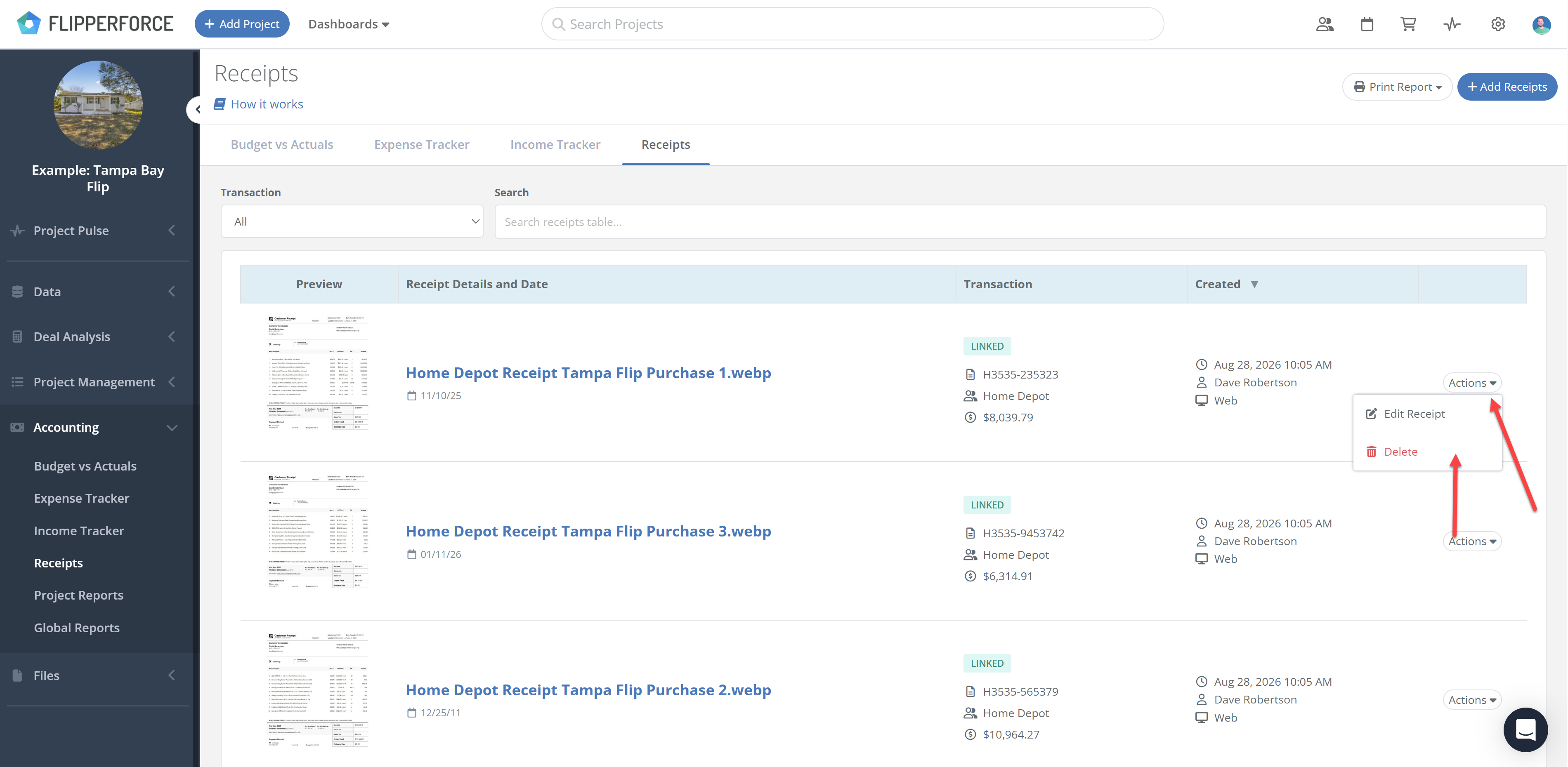
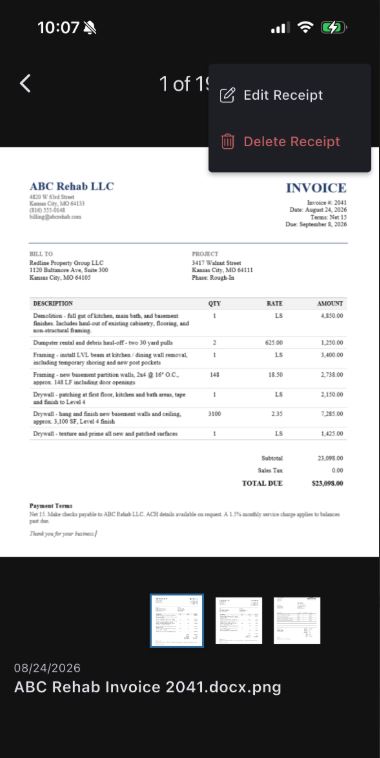
In the web app, go to Receipts, click Actions on the receipt, and choose Delete. In the mobile app, tap the receipt, then the 3 dots in the upper right, then Delete.
You can delete a receipt from the web app or the mobile app. If the receipt is attached to the wrong transaction and you want to keep the file, unlink it instead of deleting it.
Delete a receipt in the web app
Open the project and go to Accounting > Receipts.
Find the receipt in the table and click the Actions dropdown on the right side of that row.
Click Delete.
Click Delete Receipt to confirm.
Deleting a receipt is permanent and cannot be undone. If the receipt was linked to a transaction, the transaction and its expenses stay in the Expense Tracker. Only the receipt file is removed.
Unlink a receipt from a transaction
If a receipt is attached to the wrong transaction, you can unlink it without deleting anything.
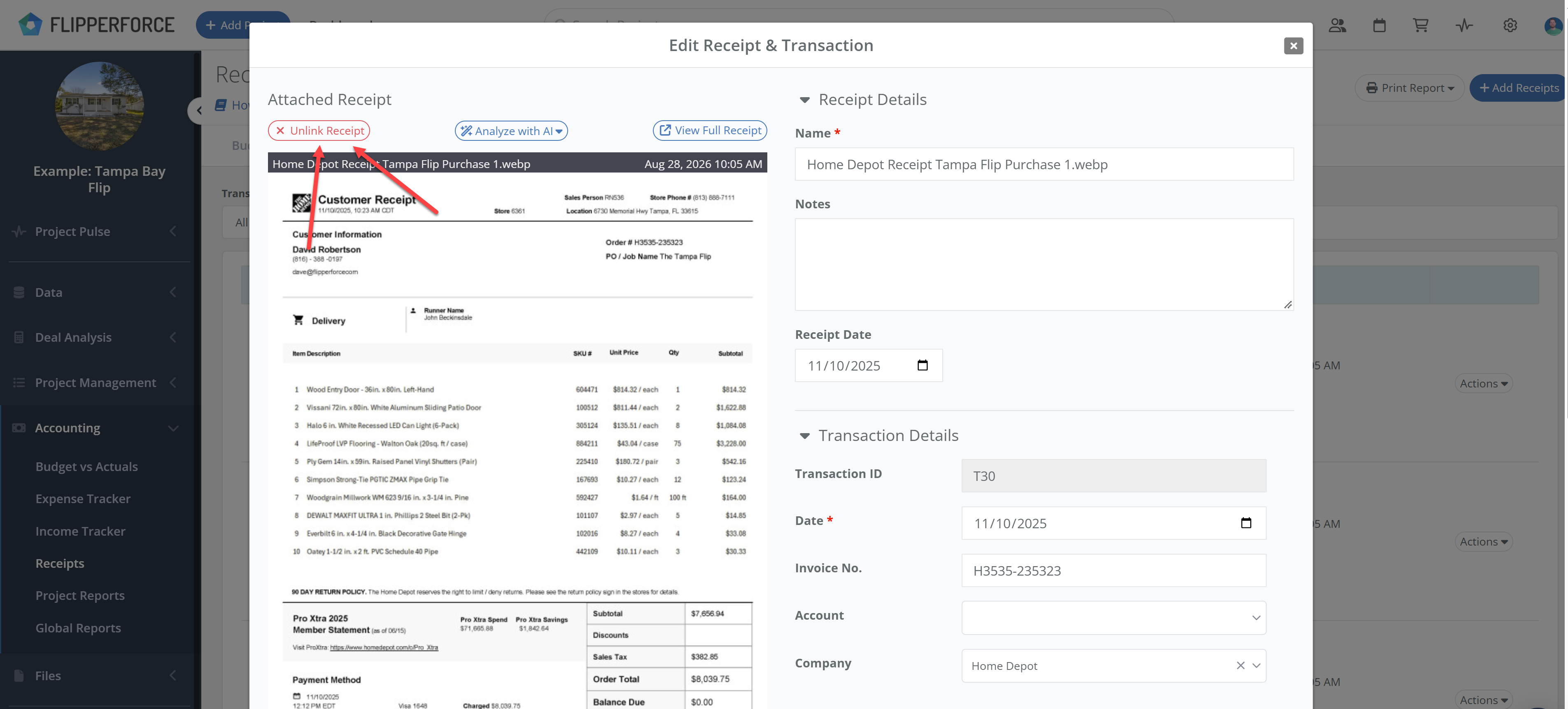
In Receipts, click the receipt name (or click Actions > Edit Receipt).
In the Edit Receipt & Transaction window, click Unlink Receipt above the receipt image.
The receipt goes back to Unlinked status in your Receipts table, and the transaction stays in the Expense Tracker. You can then link the receipt to the correct transaction or delete it.
Delete a receipt in the mobile app
Open the project and tap the Receipts tab.
Tap the receipt you want to delete.
Tap the 3 dots in the upper right corner.
Tap Delete.
Receipts are part of the Accounting tools included in All-in-One plans.
Get immediate, feature-specific answers without digging through articles. DaveBot is here 24/7 to provide detailed explanations, troubleshooting tips, and guidance on all FlipperForce tools.