We’ve completely rebuilt our bulk importer from the ground up. It is no longer just a file uploader—it’s a universal translator for your financial data.
Why the New AI Importer is a Game-Changer:
No Templates Required: Forget the rigid CSV templates of the past. You can now drop in raw, unstructured CSVs or even PDF bank statements. No more reformatting columns to make your data "fit."
Complete Data Mapping: We’ve expanded beyond just dates and amounts. The AI now transcribes and maps Accounts, Companies, Categories, and Classes directly from your file.
Intelligent AI Categorization: Our AI reads your item descriptions and automatically maps them to the correct project category. It knows "Lumber" belongs in Framing and "Faucets" belong in Plumbing.
Automatic Transaction Grouping: To make reconciliation easy, expenses are grouped by Transaction ID. This ensures your digital records in FlipperForce perfectly match your physical receipts.
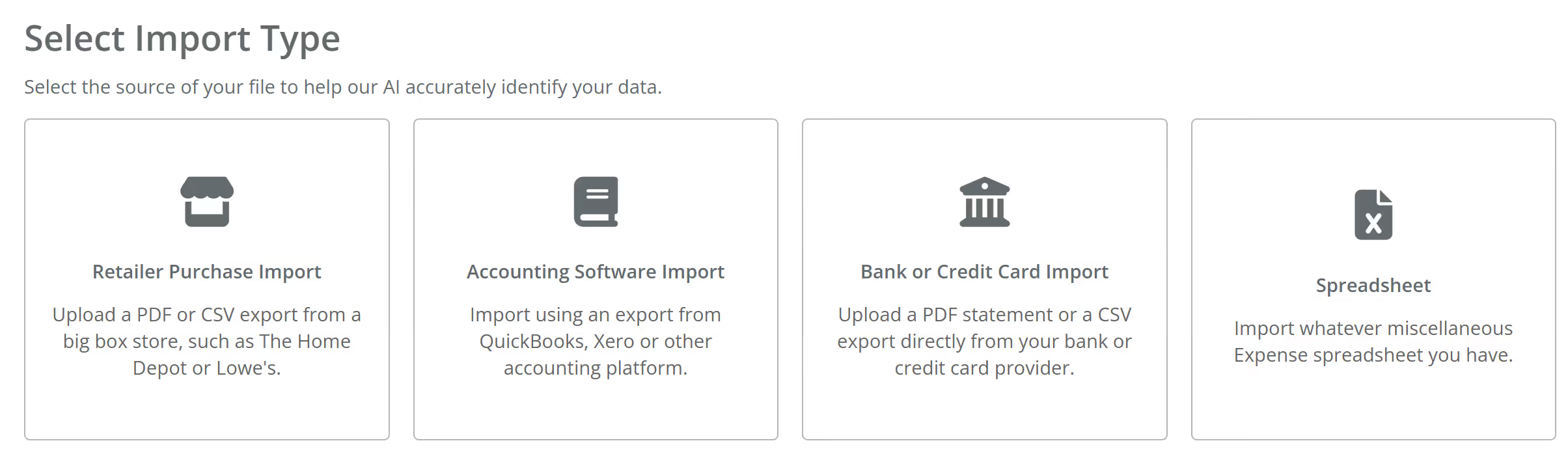
4 Ways to Import Your Data
To get the most accurate results, simply choose the source that matches your file:
Retailer Purchase History (Home Depot & Lowe's) : Export your "Detailed Purchase History" from Pro Xtra and drop it in. The AI transcribes every single line item, assigning the vendor, category, and material class for you.
Accounting Software (QuickBooks & Xero) : Export a project report from your accounting software. The AI maps that data into FlipperForce so your project-level tracking stays in sync with your high-level books.
Bank or Credit Card Statements : Upload a monthly statement in PDF or CSV. The AI identifies the vendor, extracts the amount, and suggests the correct budget category.
Miscellaneous Spreadsheets:: Have a custom tracker or a messy Excel file? The AI scans the file and finds the relevant data regardless of your column order or headers.
Setting the AI Up for Success
While our AI is built to handle "messy" data, a little prep goes a long way:
Consistent Naming & Numbers: The AI uses "fuzzy matching" to link your file to your FlipperForce settings. If your file uses Company names or Account numbers (like the last 4 digits) that closely match what you have in FlipperForce, the AI can map them instantly. If the data is too vague or doesn't match, the AI will leave the field blank for you to review in the next step.
Eliminate Confusing Data: Some exports (like Home Depot) provide multiple columns for "Amount," "Tax," and "Total." Deleting these extra columns before you upload prevents the AI from getting "distracted" and ensures it pulls the correct final totals every time.
Verify with the Preview Window
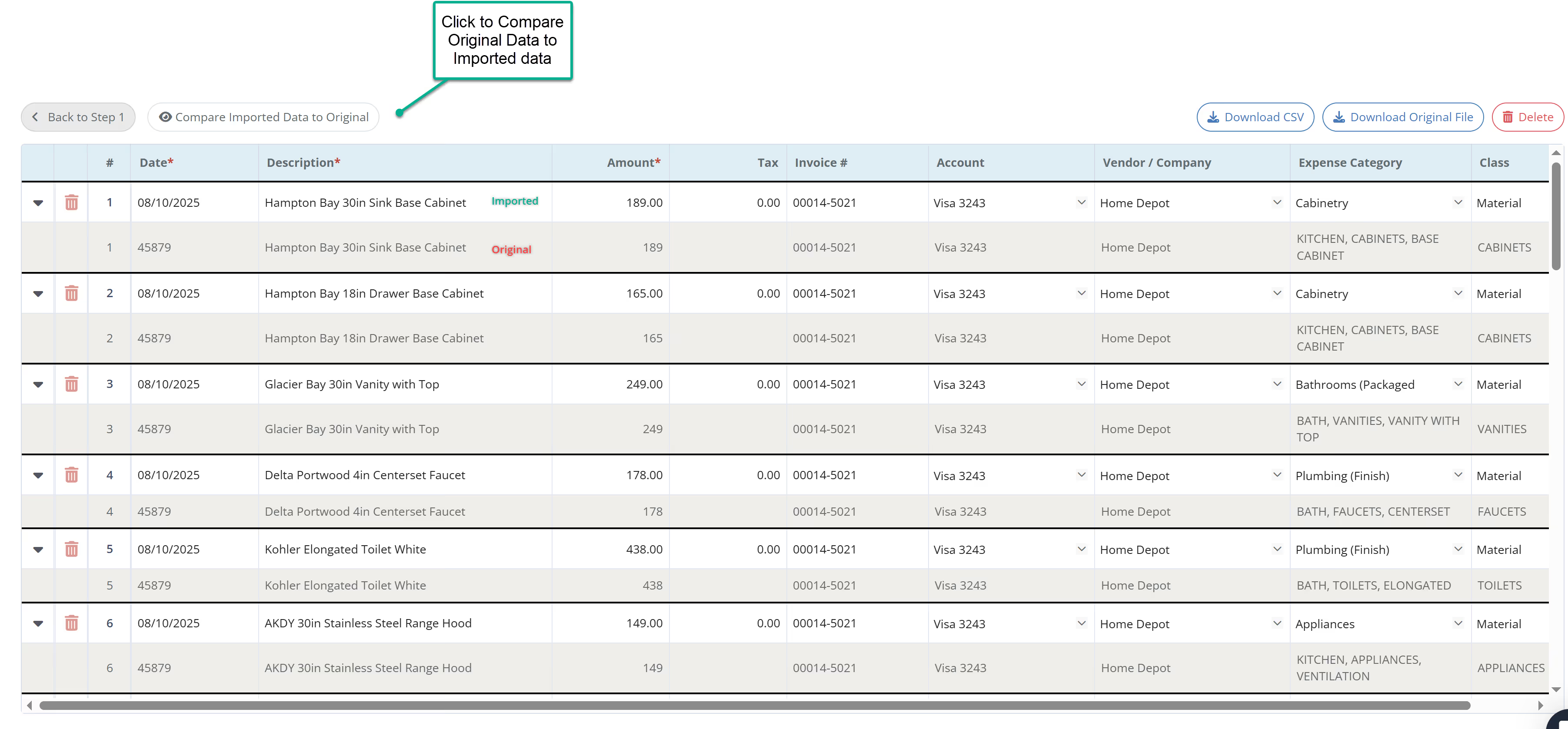
Precision is critical for your lenders and partners. Our new Preview Window lets you verify results before they hit your books.
Using a stacked row layout, we display the Imported Data directly on top of the Original Data from your file. This makes it incredibly easy to spot-check for accuracy and make quick edits. Once verified, click Confirm and your expenses are imported and organized instantly.
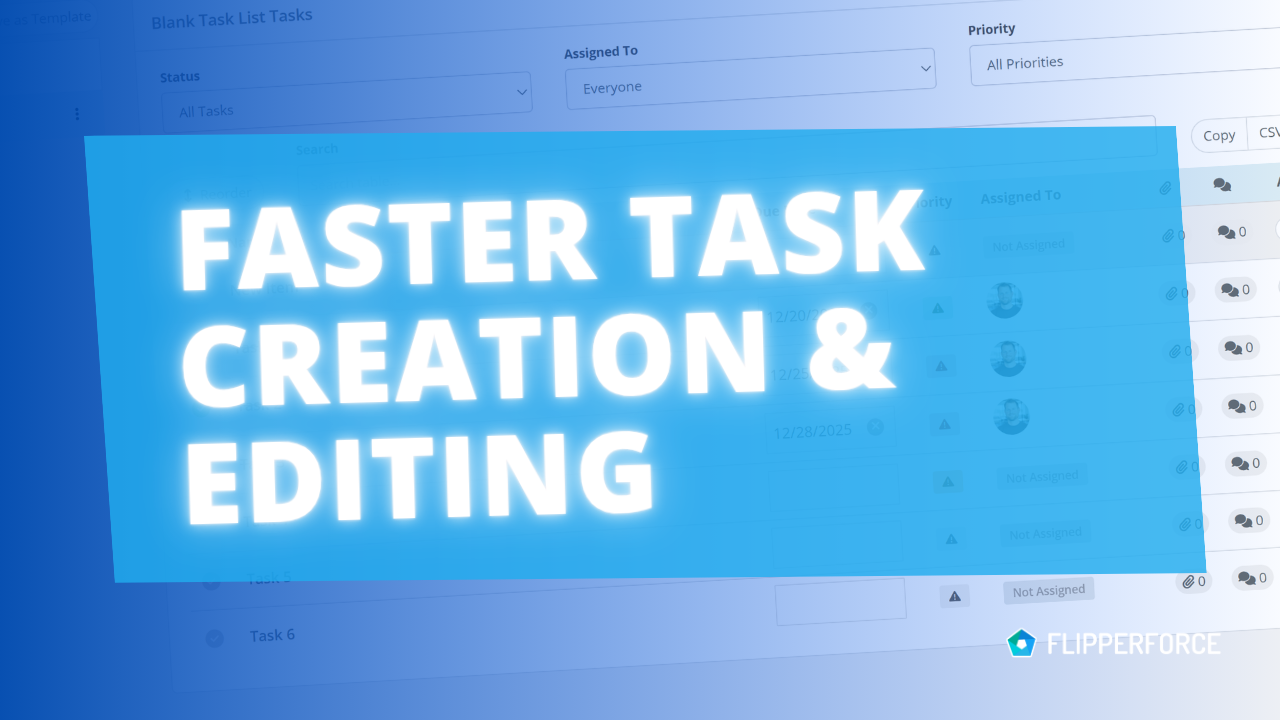
You can now pre-assign team members to the tasks in your Task Templates. Every time you load that template into a project, each task is already assigned to the right person.
The FlipperForce Field mobile app now uploads photos and receipts faster and more reliably on iOS and Android. A new My Recent Uploads inbox lets you track progress, retry failed items, and run multiple upload batches at once.
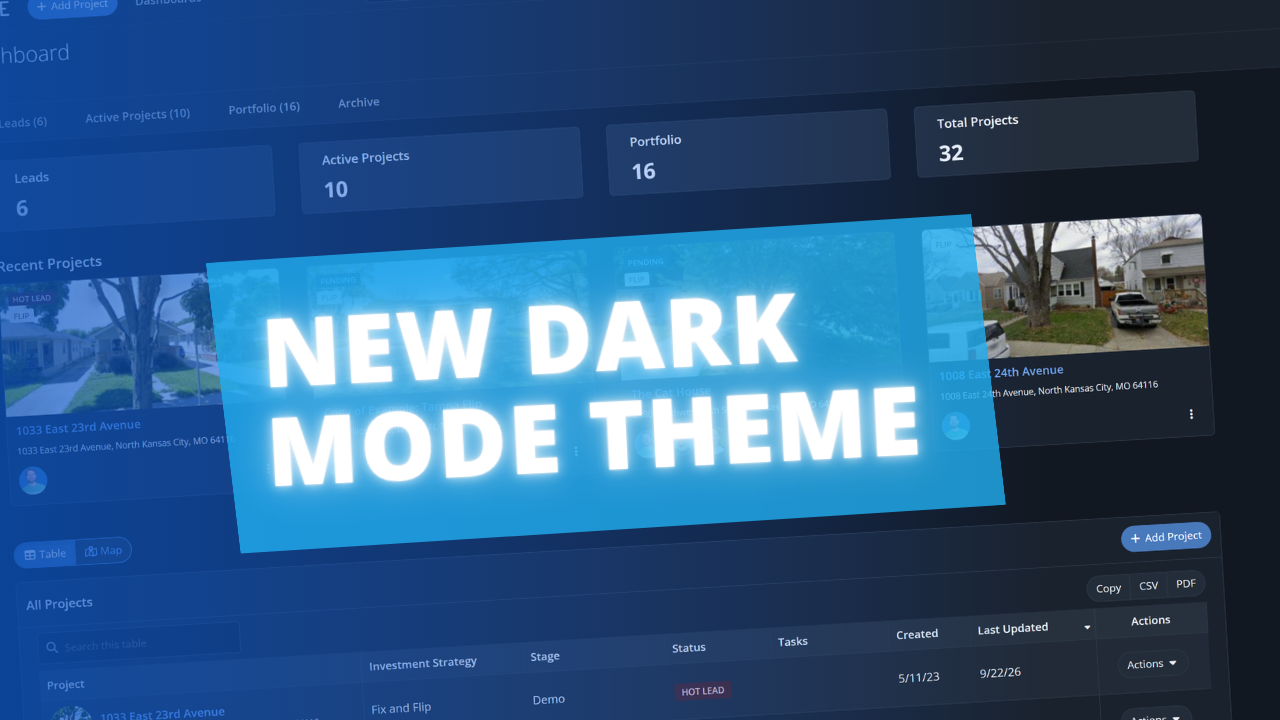
FlipperForce now has a full dark theme across the web app and the FlipperForce Field mobile app. Choose Light, Dark, or System to match how and where you work.
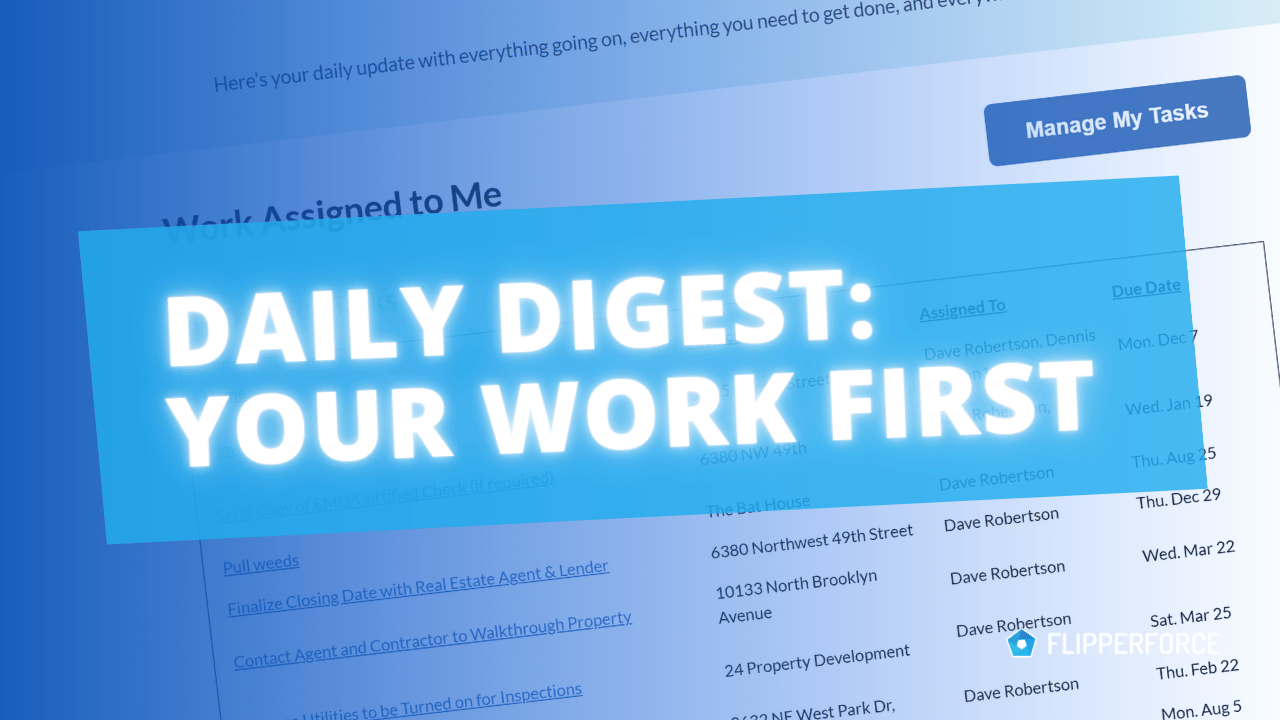
The Daily and Weekly Digest emails summarize tasks, schedules, and events across your projects. Both now lead with a Work Assigned to Me section, so you see your own overdue, due today, and upcoming work before everything else in the workspace.