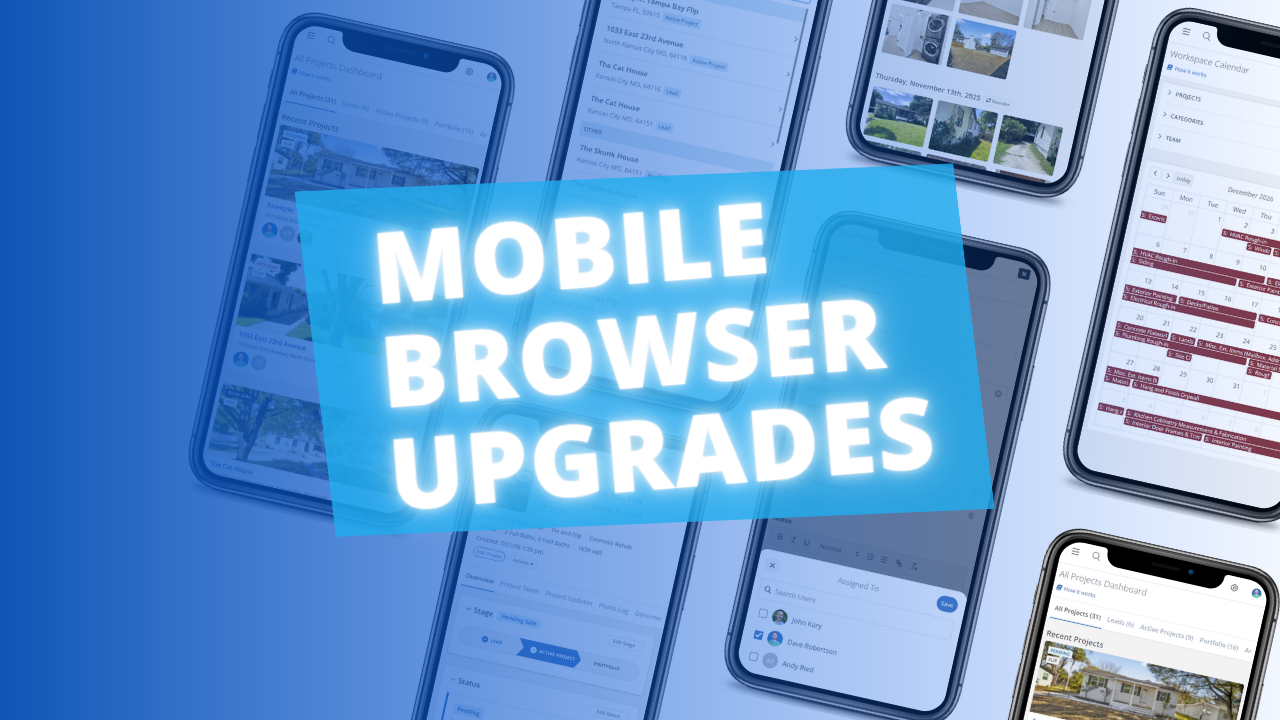
The FlipperForce web app is now much easier to use in your phone's browser. Date pickers, menus, the Scheduler, the Task Manager and the Photo Log have all been reworked to fit a small screen and work well with your phone's keyboard.
The FlipperForce Field app covers photos, receipts and project updates on the go. For everything else, many of you open the full web app on your phone from the job site. Some of that was clumsy. The calendar could hide behind the keyboard, menus could run off the edge of the screen, and some pages slid sideways as you scrolled. We went through the app screen by screen on iPhone and fixed what got in the way.
What's New
Getting Around
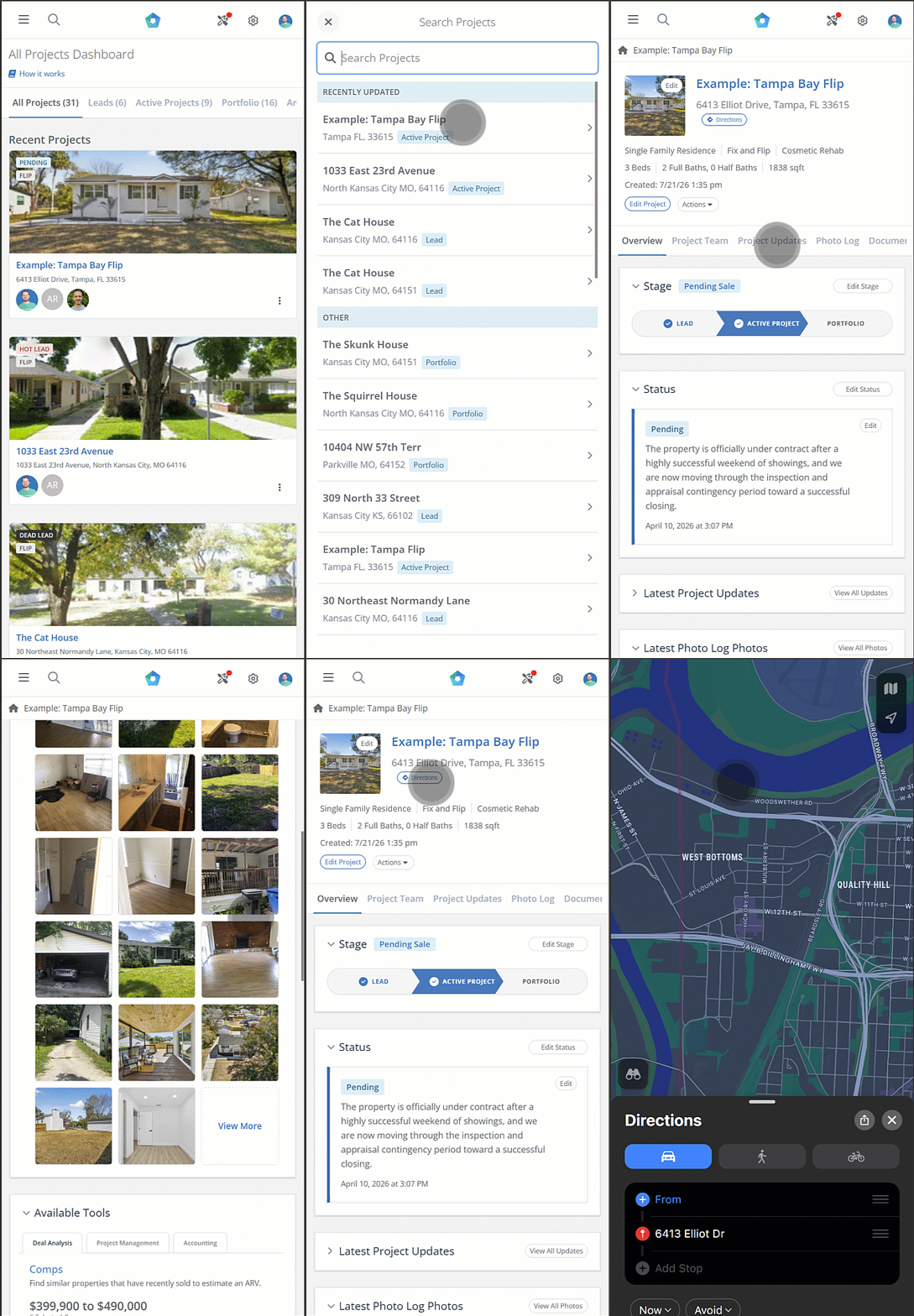
Fullscreen project search. Tap the magnifying glass next to the menu to search all your projects. Recently updated projects appear first.
Cleaner project header. A smaller photo and tidier property details leave more room for the project itself.
Directions from the address. A new Directions button next to the property address opens Apple Maps on iPhone and iPad, and Google Maps everywhere else.
Easier tab navigation. The tab for the page you're on now scrolls into view automatically. The edges of the tab bar fade to show there are more tabs to swipe to.
Menus stay on screen. The top menus, including Workspace Settings, now fit within the screen.
No more sideways sliding. The Task Manager, Photo Log, Documents and Activity Log pages no longer pan left and right as you scroll.
Dates and Calendars
Date pickers stay visible. When you set a task due date, calendar event, milestone, or receipt date, the field and its calendar stay on screen above the keyboard.
Clear empty dates. Empty date fields now show "(Select a Date)", so you know where to tap.
Clear a Comps date. The Sold Date in Comps has a new Clear button, which the iPhone date picker didn't offer.
Compact Calendar toolbar. The Calendar toolbar fits on one row, with a dropdown to switch between Month, Week, Day and List.
Task Manager
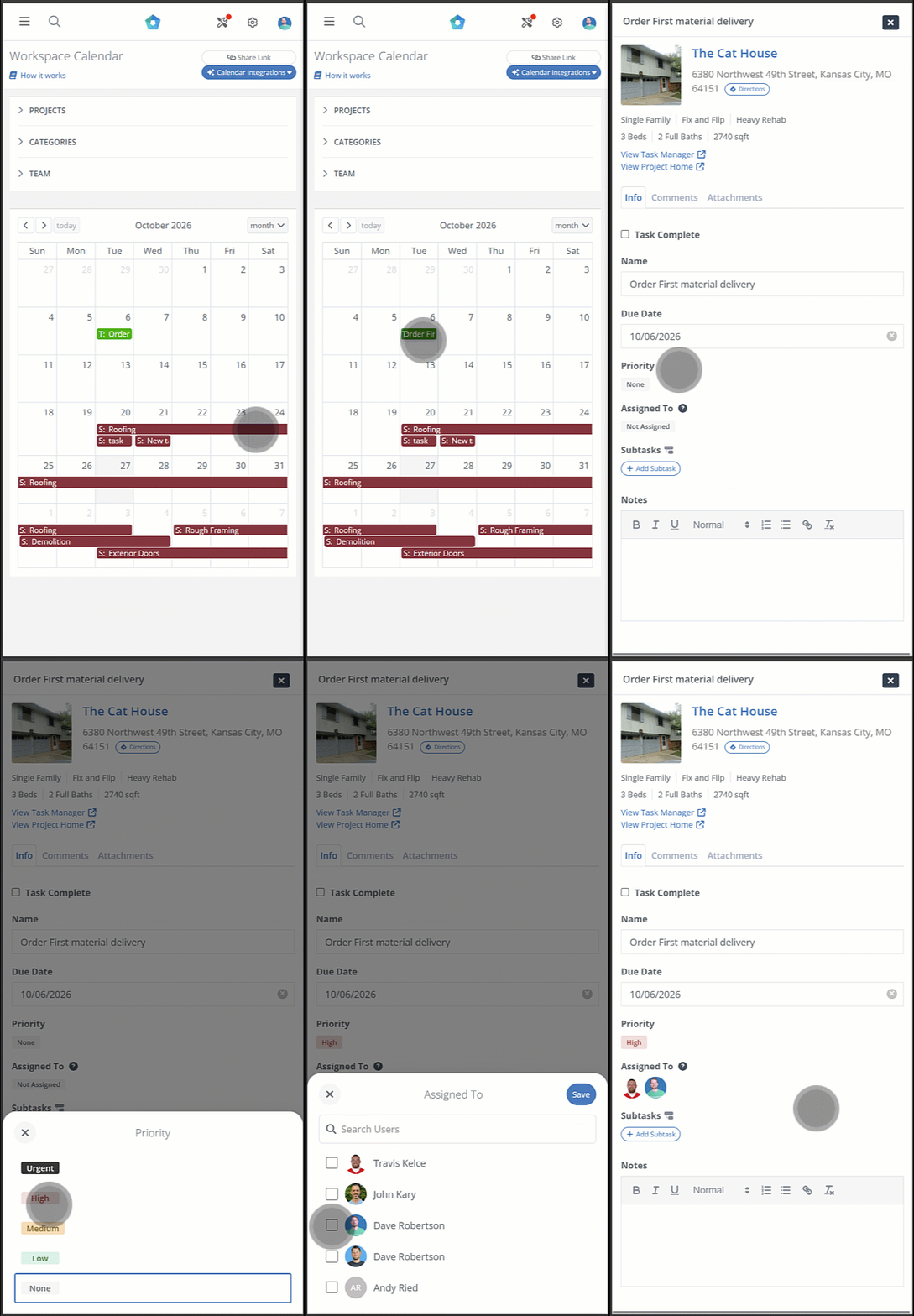
Panels made for tapping. Assigned To and Priority open in panels that slide up from the bottom of the screen. When you search for a teammate, the panel expands so you can see the whole list.
Save before assigning. Changes to Assigned To only apply when you tap Save, so you can back out without changing anything.
Add tasks above the keyboard. New tasks are typed into a bar that sits right above the keyboard. You can see the list as you add to it.
Scheduler
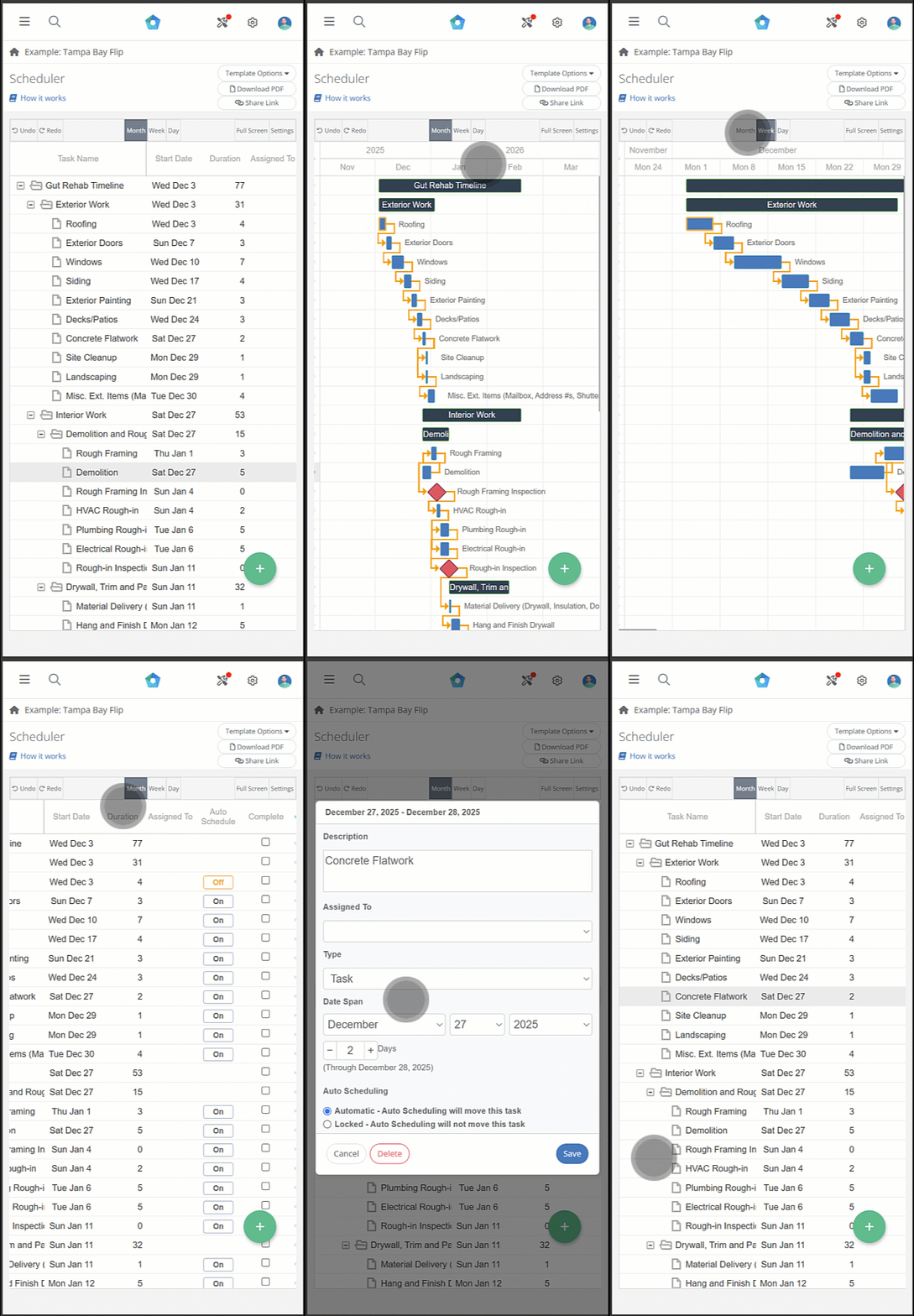
Scroll the whole timeline. You can scroll the whole schedule sideways to see the timeline, instead of having the task list fill the screen.
Editors that fit. Task, milestone and task group editors fit the screen, and Save, Cancel and Delete stay visible.
Compact toolbar. The toolbar is smaller, and there's a visible button to exit Full Screen.
Photo Log
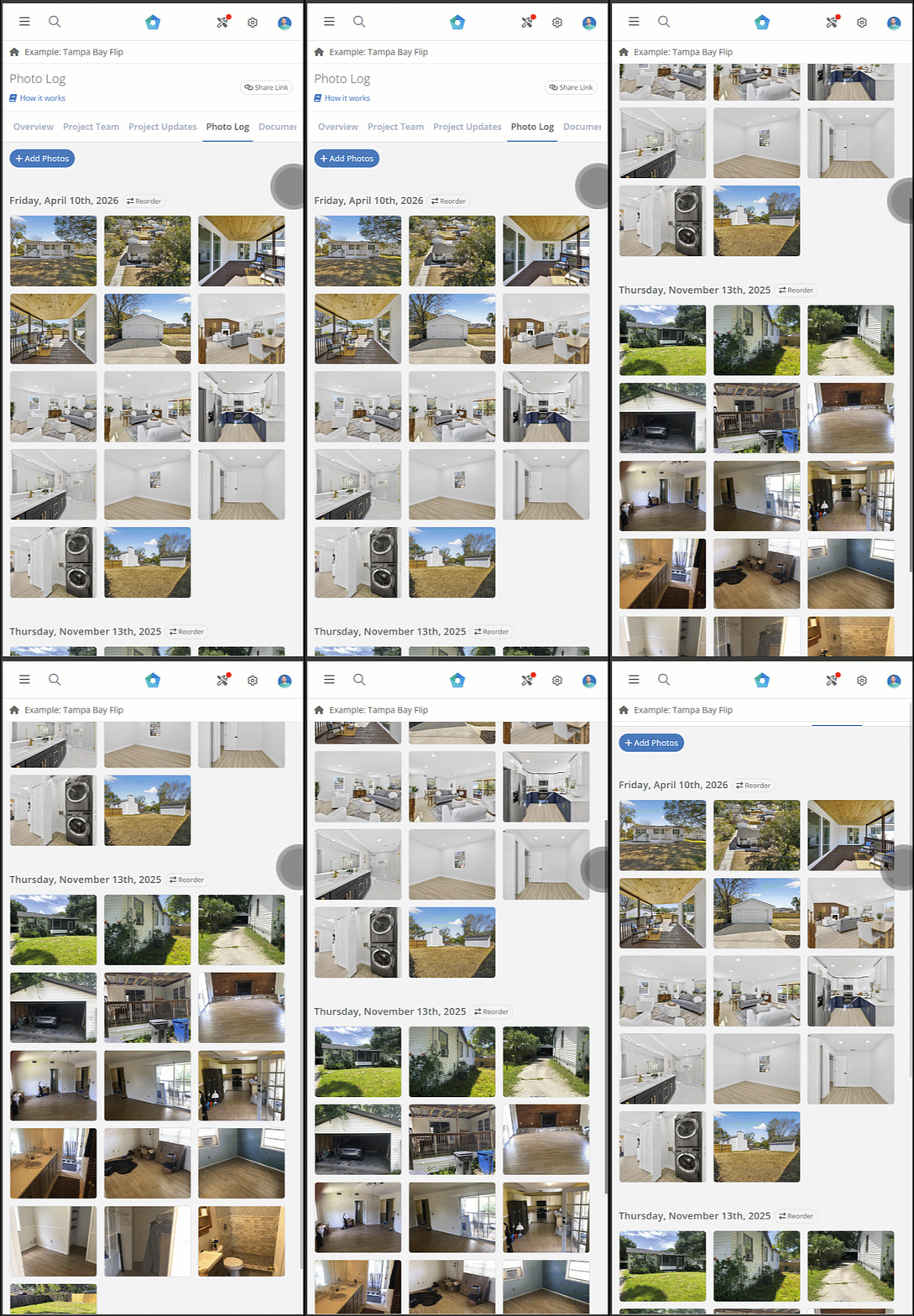
Three photos per row on iPhone, up from two.
Reach every photo detail. The slideshow now scrolls, so you can reach each photo's details and actions.
Close button on the right. The close button now sits in the top right, the same as everywhere else in the app.
Smaller Fixes
Table headers in the Edit Receipt & Transaction window fit on one line.
Loan amount options in the Flip and BRRRR Analyzers fit on one row.
Text editor toolbars for task notes, comments and Project Updates no longer wrap onto a second line.
No setup is needed. Just log in to FlipperForce in your phone's browser.
You can now pre-assign team members to the tasks in your Task Templates. Every time you load that template into a project, each task is already assigned to the right person.
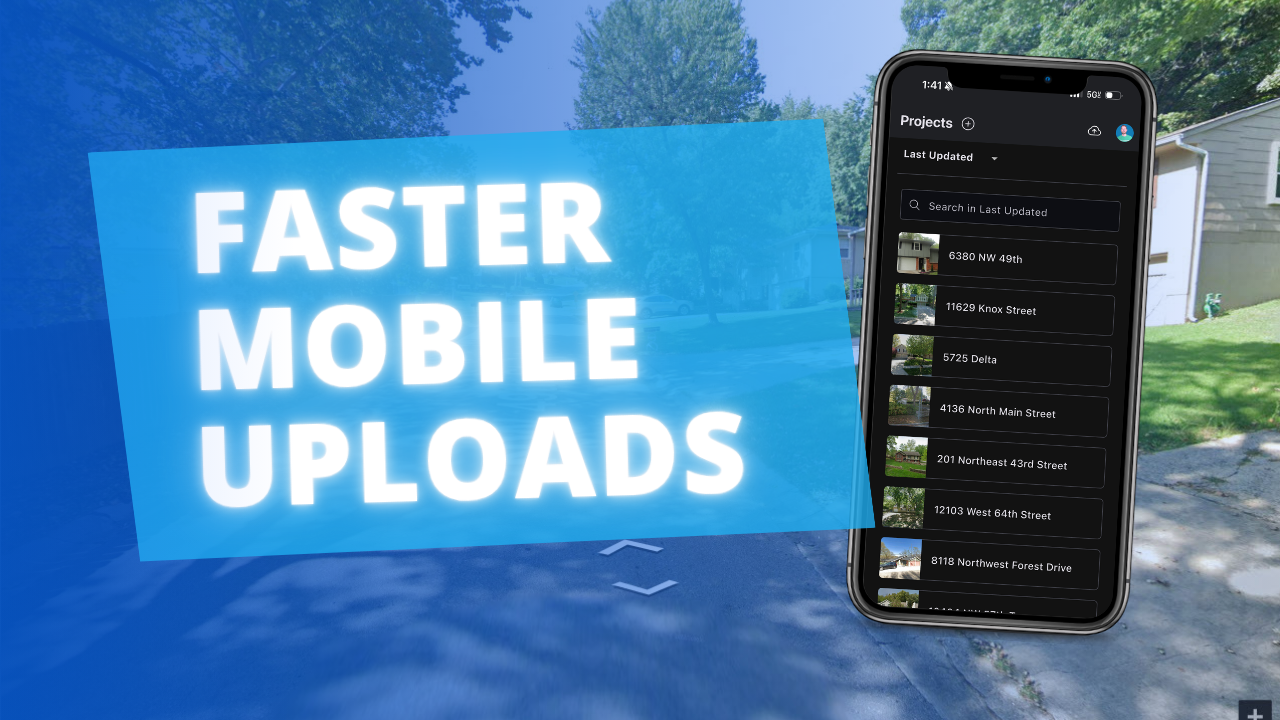
The FlipperForce Field mobile app now uploads photos and receipts faster and more reliably on iOS and Android. A new My Recent Uploads inbox lets you track progress, retry failed items, and run multiple upload batches at once.
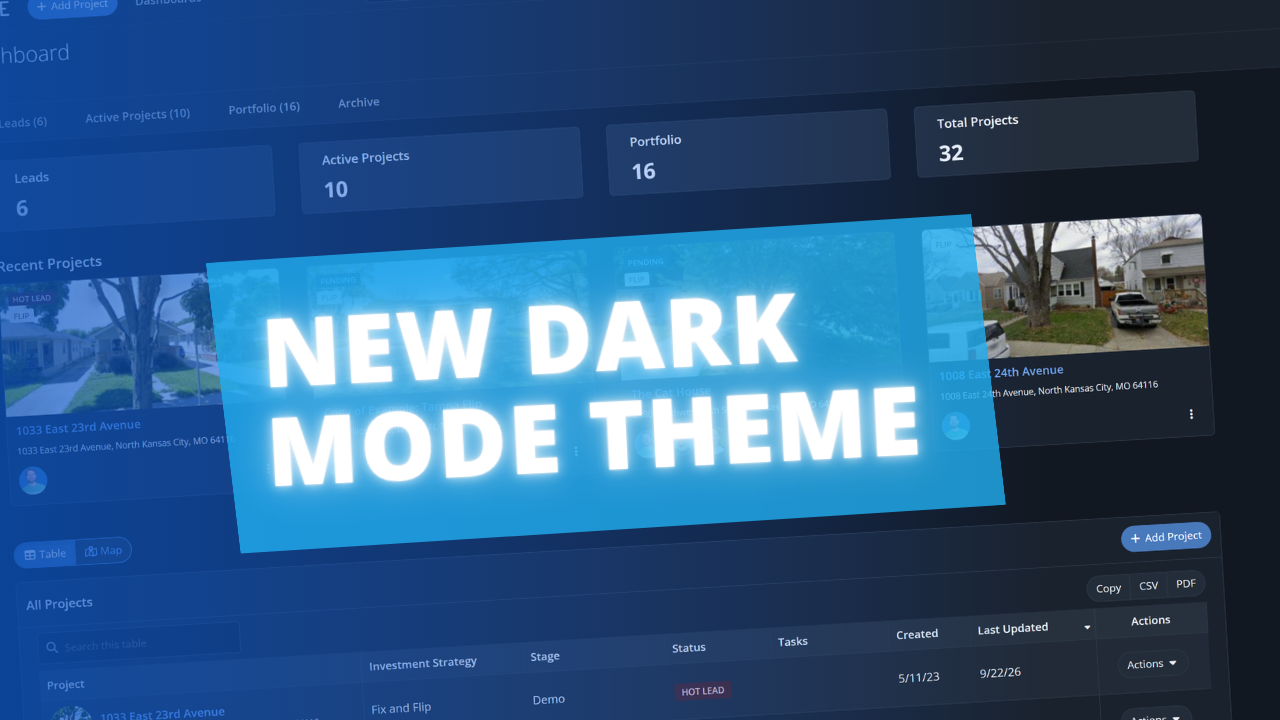
FlipperForce now has a full dark theme across the web app and the FlipperForce Field mobile app. Choose Light, Dark, or System to match how and where you work.
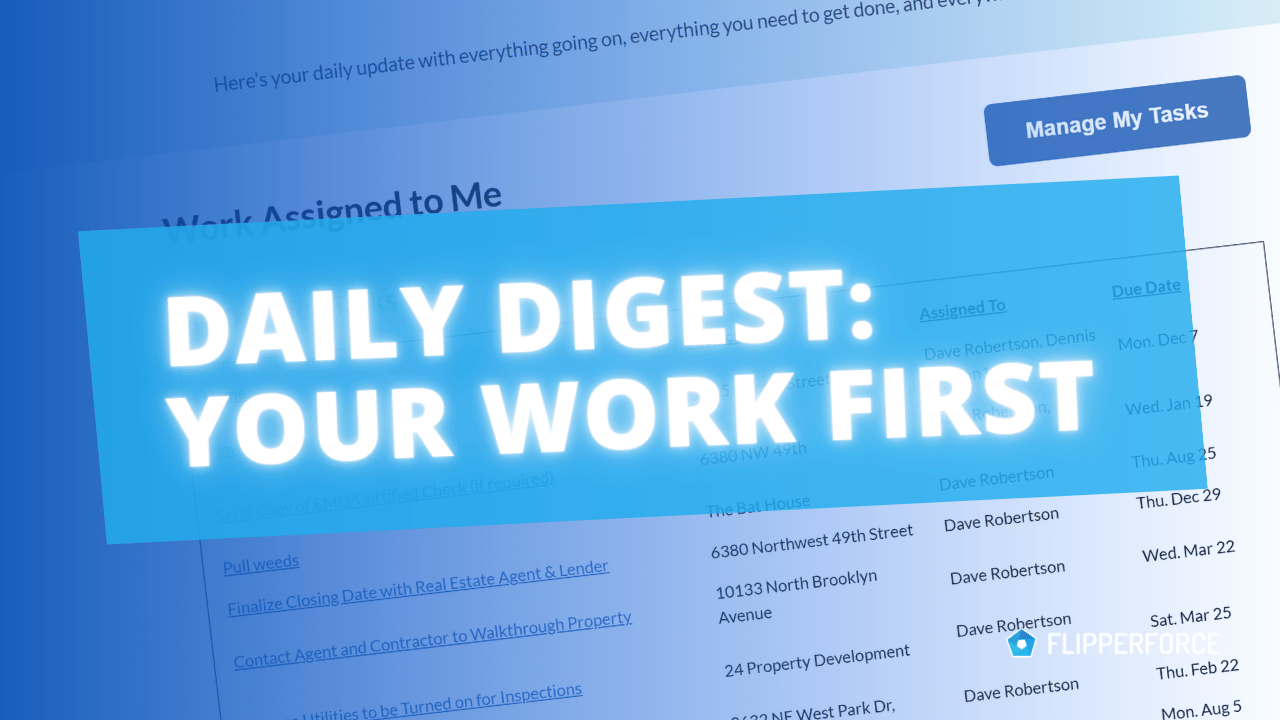
The Daily and Weekly Digest emails summarize tasks, schedules, and events across your projects. Both now lead with a Work Assigned to Me section, so you see your own overdue, due today, and upcoming work before everything else in the workspace.