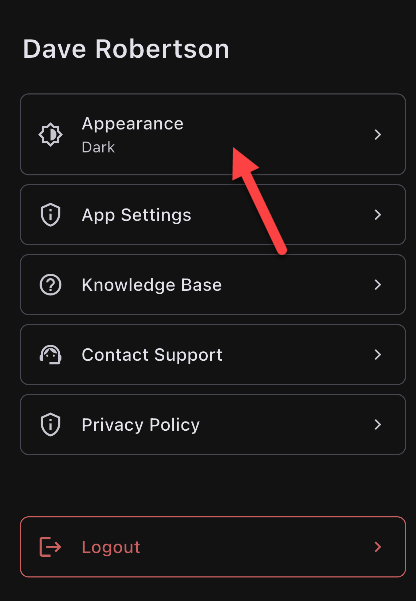
Tap your profile image in the upper right corner, then tap Appearance and choose Light, Dark, or System. The app defaults to System, which matches your phone's display setting.
The FlipperForce Field mobile app has three appearance options: Light, Dark, and System.
Change Your Appearance
Tap your profile image in the upper right corner.
Tap Appearance at the top of the menu.
Select Light, Dark, or System.
What Each Option Does
Light: the classic FlipperForce look.
Dark: a dark theme that stays on all the time. Easier on the eyes at night or in low light.
System: automatically matches your phone's display setting. If your phone switches to dark mode at night, the app switches with it.
The mobile app defaults to System, so if your phone is already set to dark mode, the app will be too.
Get immediate, feature-specific answers without digging through articles. DaveBot is here 24/7 to provide detailed explanations, troubleshooting tips, and guidance on all FlipperForce tools.