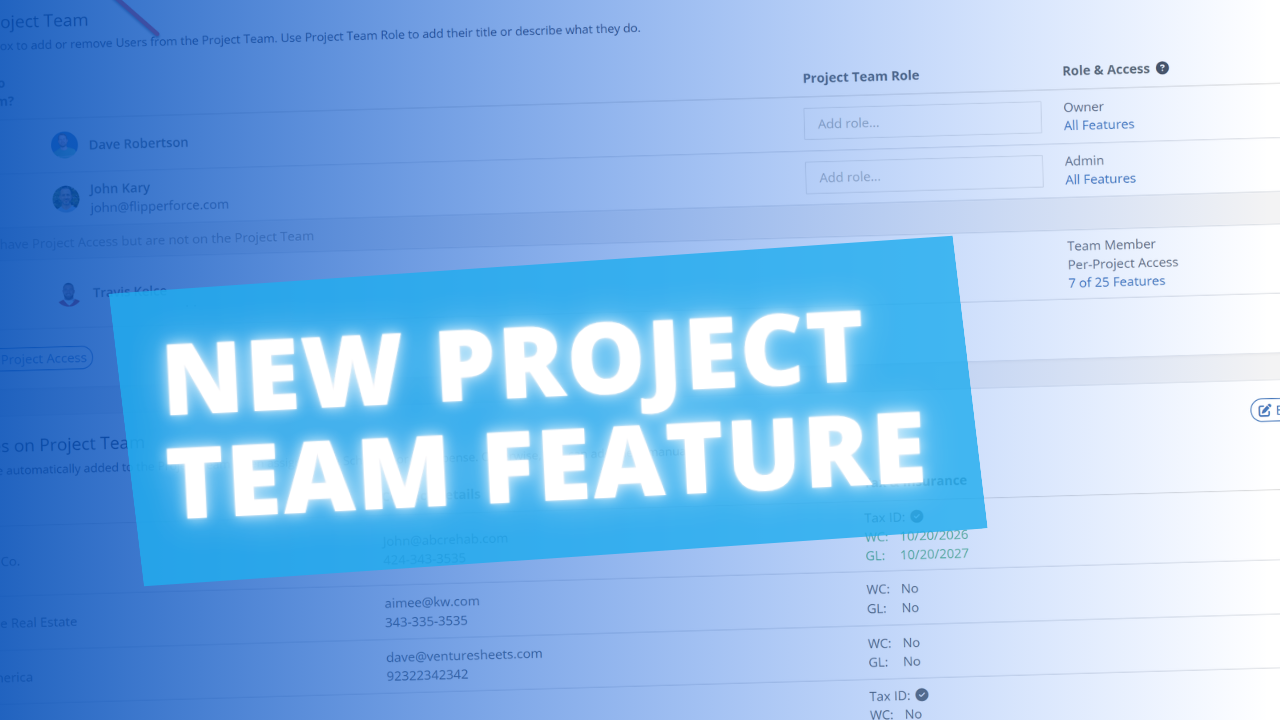
Your projects now have a Project Team tab, giving you a quick, clear view of your internal team and the companies working on each flip. Instead of hunting through contacts or digging through expenses to find who's involved, everyone on the project is organized in one place.

How It Works

Open any project and click the Project Team tab at the top of the Project Overview. The Project Team is split into two distinct sections, each focused on a different group of people involved in the project.
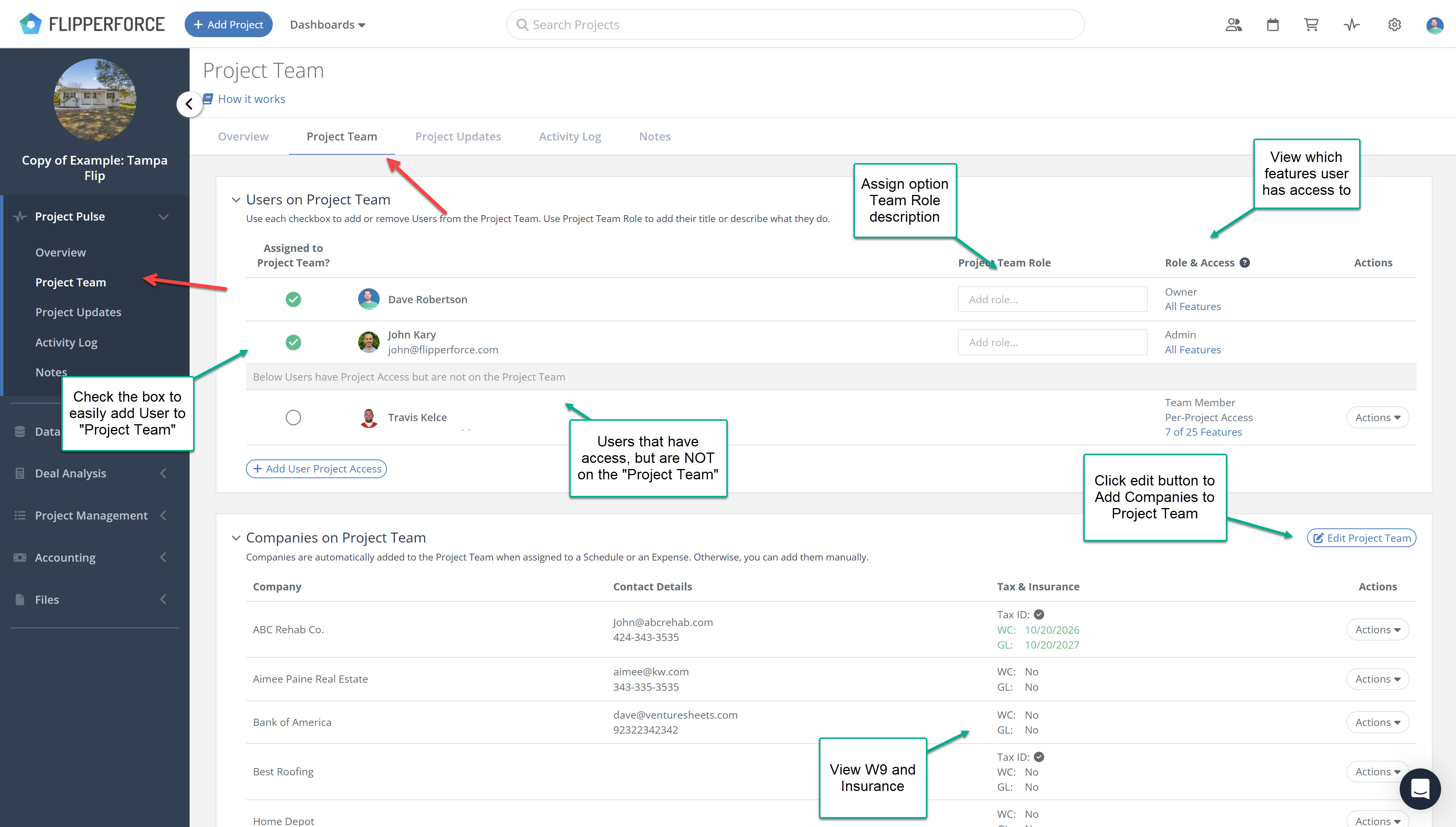
  • Users on Project Team — the internal team members actively managing the project, listed with their contact info, optional project role, and software access level. Think project manager, acquisition lead, bookkeeper.
  • Companies on Project Team — the contractors, lenders, insurance companies, and vendors involved in the project.
image

Intelligent Auto-Assignment

You don't have to build either list manually. FlipperForce intelligently assigns users and companies to the Project Team based on real activity on the project.

Users are automatically added when they:

  • Create an expense, add income, or upload a receipt
  • Get assigned to a task or assign a task to someone else
  • Post a project update or create a project note
  • Run a Flip Analyzer, BRRRR Analyzer, or load a Repair Estimator template
  • Add a photo to the Photo Log or upload a project document

Companies are automatically added when they are:

  • Assigned to a task on the project schedule
  • Assigned to an expense in the expense tracker

You can also add or remove users and companies manually at any time.

What You'll See at Launch

We've already done the work for you. Your existing Project Teams have been pre-populated based on who has already been active on each project and which companies have already been assigned to schedules or expenses. When you open the Project Team tab for the first time, your team should already look accurate.

Dave Robertson
July 1, 2026
5 min read
Our blog

Other Recent Blog Posts

New Features

Comps Tool: Thumbs Up, Thumbs Down Comp Selection

Thumbs up to select your best comps, thumbs down to push the bad ones to the bottom — keeping your list clean and your Comps Report focused on the properties that actually matter.
Dave Robertson
June 25, 2026
5 min read
New Features

New Public API Endpoints for Expenses

Our new Public API update allows developers and custom AI tools to securely connect to the FlipperForce Expense Tracker to automate data entry, feed custom dashboards, and sync project financial records directly from external business apps.
Dave Robertson
June 21, 2026
5 min read
New Features

Companies & Contacts: Tax & Insurance Status at a Glance

Tax & Insurance column added to Companies & Contacts, giving you instant visibility into W-9 status and color-coded Workers Comp and General Liability expiration dates for every contractor in your workspace at a glance.
Dave Robertson
June 11, 2026
5 min read
New Features

Property and Owner Data Revamp

Our newly revamped Property Data and Owner Data pages feature a clean, highly legible layout along with a brand-new, completely editable Seller Motivation Matrix to help you seamlessly track and document critical lead details and distress signals.
Dave Robertson
May 27, 2026
5 min read
New Features

Project Overview Revamp for Improved Organization and Clarity

Manage your entire project from one centralized "Command Center" that combines settings, status tracking, and critical tools into a single, high-clarity view.
Dave Robertson
May 12, 2026
5 min read
New Features

New % of Cost Desired Profit Calculation

You can now calculate your Desired Profit based on a % of Total Project Costs in the Flip Analyzer and save it as a global default in your settings for faster, ROI-driven deal analysis.
Dave Robertson
April 27, 2026
5 min read

Ready to Take Action?

Sign up for a free trial and join over 3,000 house flippers and real estate investors that have taken their business to the next level!