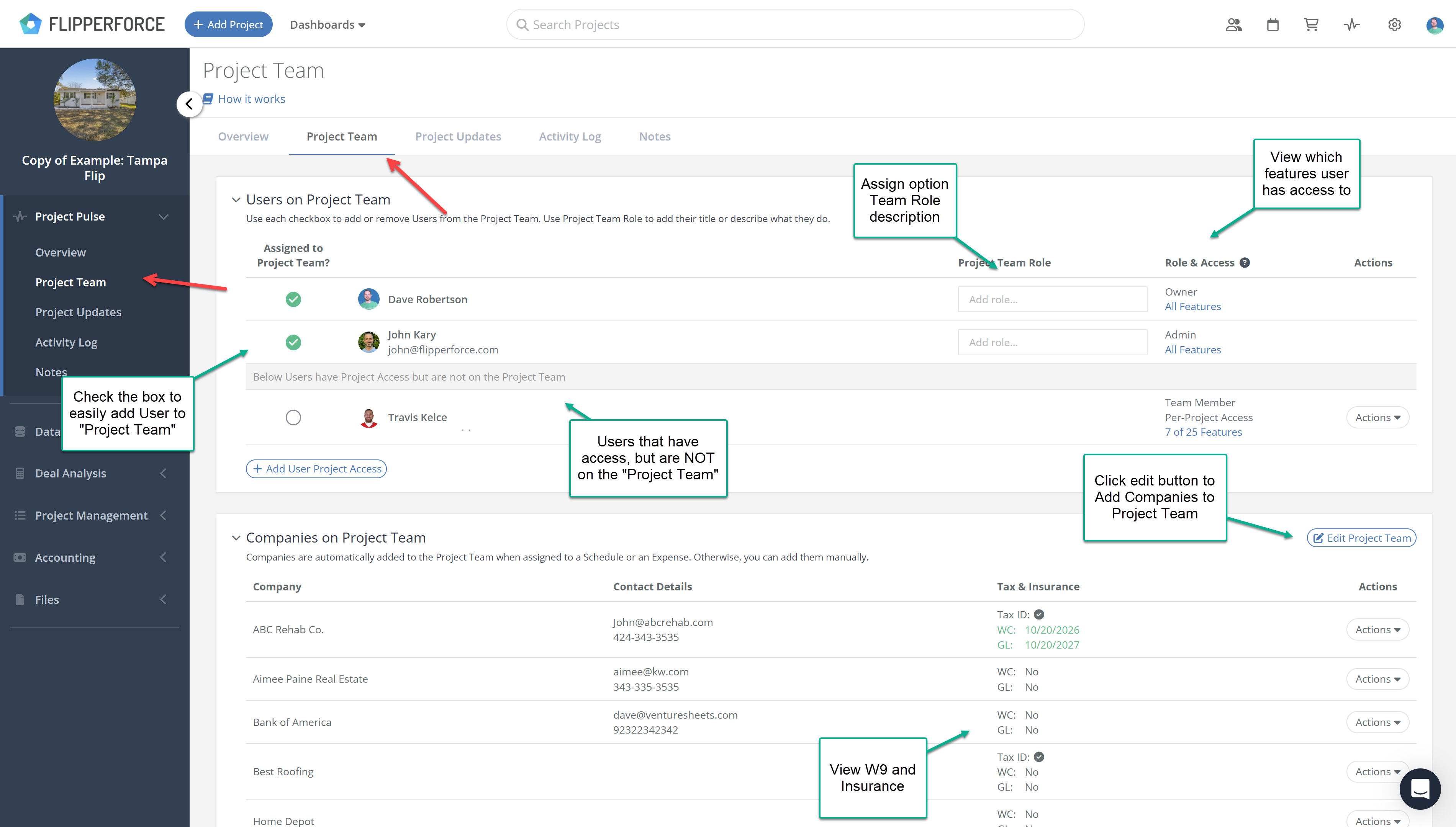
Project Team is a dedicated tab on every project showing who is actively managing the flip and which companies are involved.
Project Team is a dedicated tab on every project that gives you a quick, clear view of your internal team and the companies working on the flip. Instead of hunting through contacts or digging through expenses to find who's involved, everything is organized and ready to go.
How It Works
The Project Team tab is split into two distinct sections, each focused on a different group of people involved in the project.
Users on Project Team shows your internal team members actively managing the flip. This includes anyone on your workspace who has taken a meaningful action on the project, such as your project manager, acquisition lead, or bookkeeper. Each user is listed with their contact info, workspace role, software access level, and an optional Project Team Role to describe their responsibilities.
Companies on Project Team shows the outside companies involved in the flip, including contractors, lenders, insurance companies, and vendors. Each company is listed with their contact details, tax and insurance status, assigned schedule tasks, and total paid to date on the project.
Intelligent Auto-Assignment
You don't have to build either list manually. FlipperForce intelligently assigns users and companies to the Project Team based on real activity on the project.
Users are automatically added when they perform meaningful actions such as creating an expense, getting assigned a task, posting a project update, or running an analysis
Companies are automatically added when they are assigned to a schedule task or an expense in the expense tracker
You can also add or remove users and companies manually at any time if you'd prefer to manage the list yourself.
Why It Matters
The Project Team tab gives every flip a single, reliable source of truth for who's involved and how to reach them. Whether you need to quickly find a contractor's insurance certificate, check who's managing the project, or see how much has been paid to a vendor, it's all in one place without any manual upkeep required.
Learn how the new Project Team feature automatically tracks your internal team members and companies on every flip, so you always know who's managing the project and how to reach them.
Get immediate, feature-specific answers without digging through articles. DaveBot is here 24/7 to provide detailed explanations, troubleshooting tips, and guidance on all FlipperForce tools.