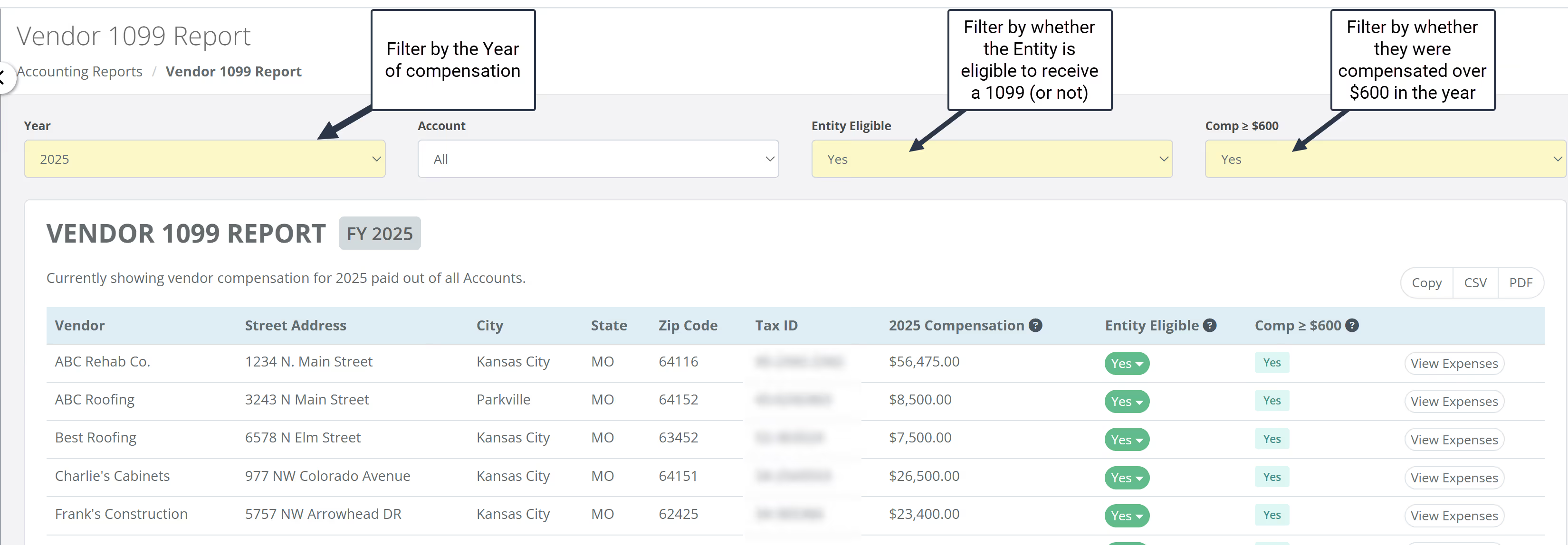
The Vendor 1099 Report is a Global Report that automatically scans your entire FlipperForce account for the tax year. It pulls payment data from every active and completed project in your portfolio and aggregates them by individual Vendor. This allows you to see the "Big Picture" of your spending without having to manually add up receipts from different houses.
The Vendor 1099 Report is a Global Report that automatically scans your entire FlipperForce account for the tax year.
It pulls payment data from every active and completed project in your portfolio and aggregates them by individual Vendor. This allows you to see the "Big Picture" of your spending without having to manually add up receipts from different houses.
Where does the data come from?
The report is powered by your Expense Tracker. Every time you log an expense in any of your projects, FlipperForce looks at three specific pieces of information to build your 1099 report:
Vendor Name: The company or person linked to the expense.
Date Paid: Only expenses with a payment date within the selected calendar year (e.g., Jan 1 – Dec 31, 2025) are included.
Amount: The total dollar value of the transaction.
How is the total Compensation calculated?
FlipperForce automatically aggregates every single expense across your entire portfolio for each vendor.
Across Multiple Projects: If "Smith Plumbing" worked on 3 different houses for you, the report finds all payments to "Smith Plumbing" across all 3 projects and provides one grand total.
Labor vs. Materials: Per IRS guidelines, if a contractor provides both labor and materials as part of their service (e.g., a plumber who provides the pipe and the labor), the full invoice amount is typically reportable. FlipperForce includes the total expense amount to ensure you are compliant with these requirements.
How do I manage Vendor Information?
For a 1099 to be valid, the IRS requires the recipient's Legal Name, Address, and Taxpayer Identification Number (TIN/EIN).
Initial Entry: This information is originally pulled from your Companies & Contacts manager.
On-the-Fly Updates: If you run the report and see a "Missing Info" warning, you don't have to leave the page. Click the Edit icon directly in the report to open a pop-up window. Any info you enter there (like a missing EIN) will save back to the vendor's permanent profile.
Using the Smart Filters
The new filtering system at the top of the report is designed to do the heavy lifting for you:
Eligible Filter: Only shows vendors you have manually flagged as "1099 Eligible" in the software (usually non-incorporated businesses).
>$600 Filter: Instantly hides any vendor who was paid less than the IRS reporting threshold of $600 for the year.
Combined View: By turning both on, you get a clean "to-do list" of exactly which vendors need a 1099 form sent to them.
How do I verify the numbers?
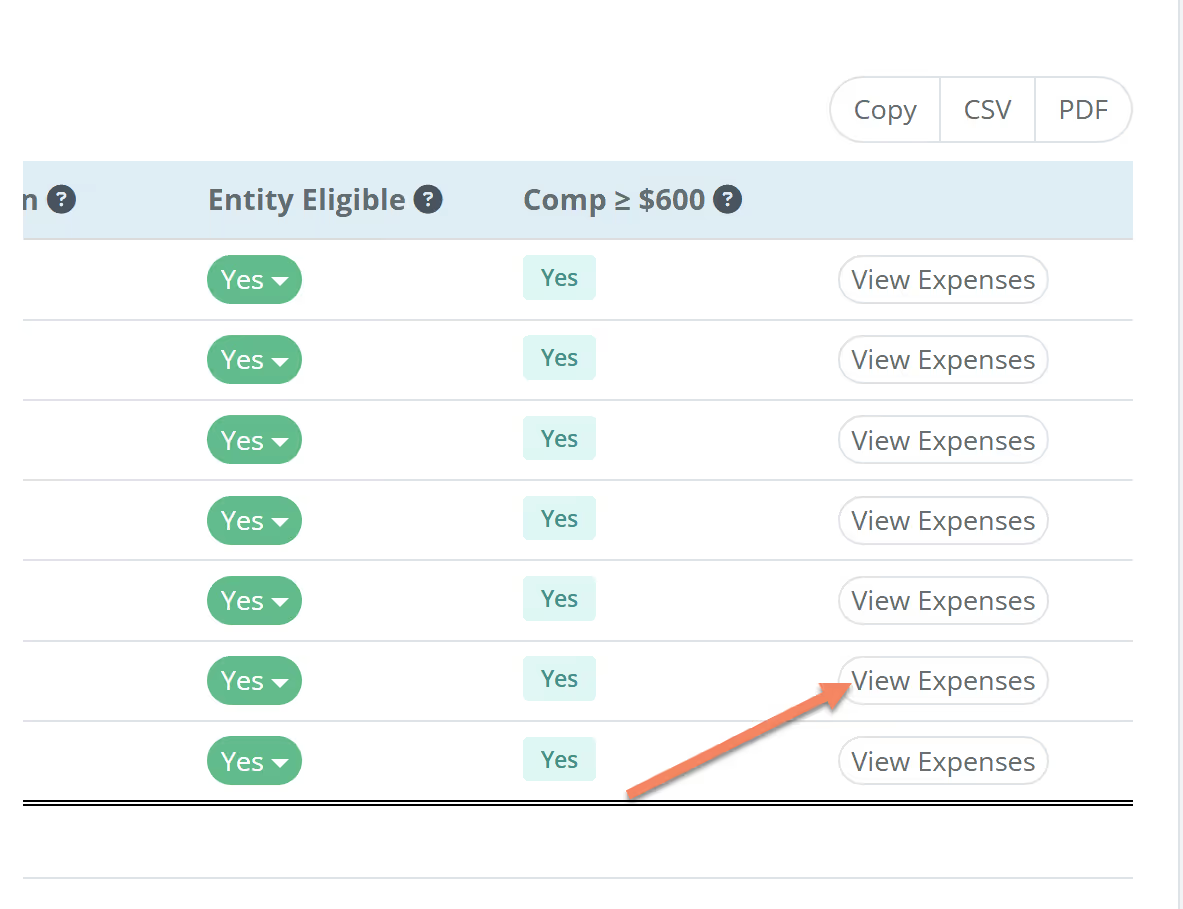
We believe in "trust, but verify." If a total looks higher or lower than you expected, click the View Expenses link next to the vendor's name. This will open a detailed breakdown showing every specific expense, project name, and date that makes up that vendor's total compensation for the year.
Learn how to use the revamped FlipperForce Vendor 1099 Report to automatically aggregate contractor payments, verify eligibility, and export your data for the upcoming February 2nd tax deadline.
Get immediate, feature-specific answers without digging through articles. DaveBot is here 24/7 to provide detailed explanations, troubleshooting tips, and guidance on all FlipperForce tools.